Find your way around Kaiya
Open Kaiya in Microsoft Teams. Use this guide to find your conversations, results, reports and message controls.
New to Kaiya? Get started explains how to add the app and send your first request.
Layout
Select a label below an image to highlight that area. The numbers refer to the same areas on desktop and mobile.
- Desktop
- Mobile
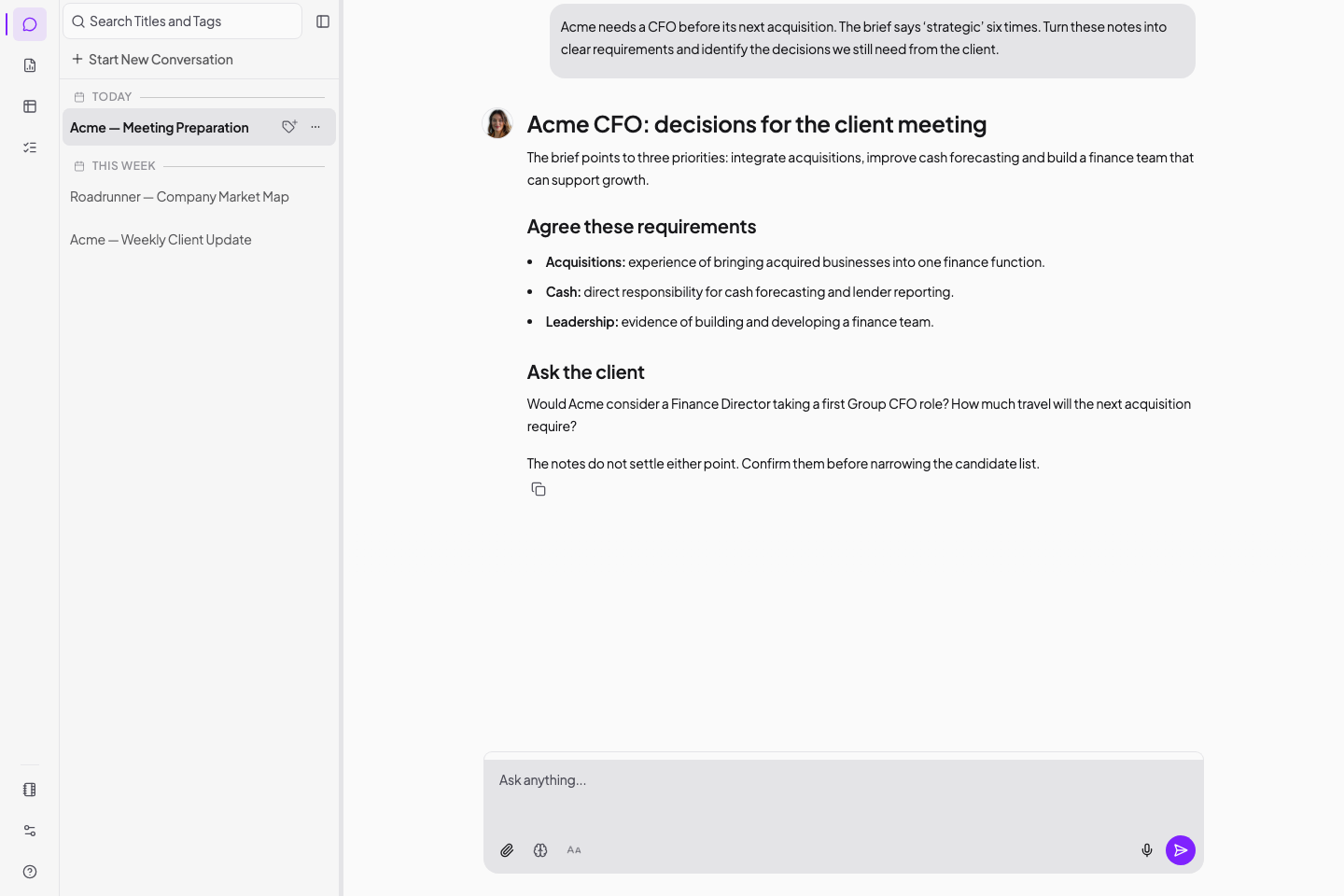
Move the pointer over an icon to read its name.
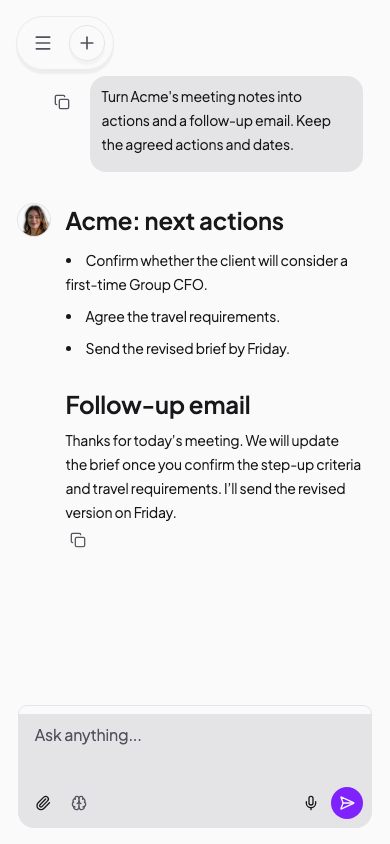
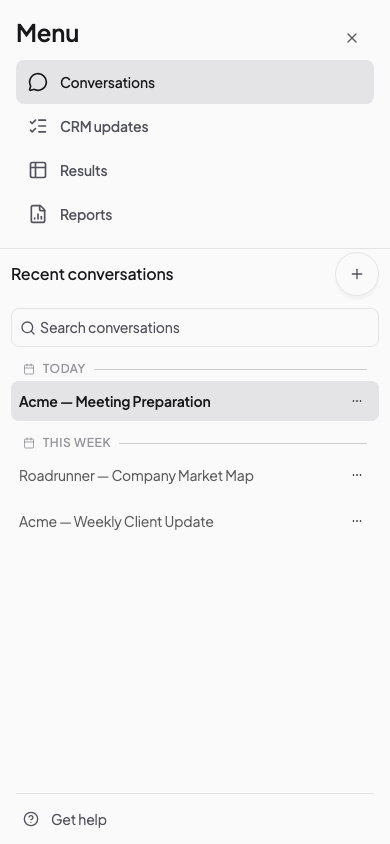
On mobile, ask Kaiya in chat to manage Instructions and Memories. Use desktop for the Personalisation page.
Reports and CRM updates appear when your firm enables access. If you need either feature, contact hello@kaiya.ai.
Conversations
Start a conversation
On desktop, select Start New Conversation above the conversation list. You can also press Control + K.
On mobile, tap + beside the menu icon or beside Recent conversations in the menu.
Keep related assignment work in one conversation. Start another conversation for a different task.
Expand or collapse the sidebar
On desktop, select Collapse sidebar beside the conversation search box. Select Expand sidebar at the top left to restore it.
Press Esc to expand or collapse the conversation sidebar. If a menu or dialog is open, Esc closes that first.
On mobile, tap the menu icon to open the conversation list. Tap the close button at the top right to return.
Rename a conversation
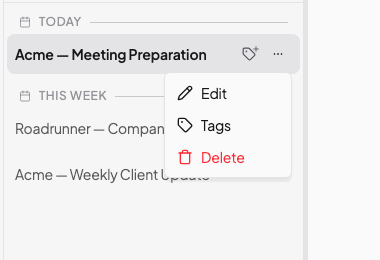
- Find the conversation in the list.
- Open its More options menu, shown as three dots.
- Select Edit.
- Change the title.
- Press Enter, or select outside the title, to save it.
Press Esc to cancel a title change.
Add or remove tags
Use tags to group related conversations. For example, add Acme to the brief, market research and client-update conversations.
- Open More options beside the conversation.
- Select Tags.
- Open the list of tags.
- Select an existing tag, or type a name and select Create tag.
- Select Save.
To remove a tag, select the checked tag again before you save. On desktop, you can also select Add tag beside a conversation.
Delete a conversation
- Open More options beside the conversation.
- Select Delete.
- Check that you have chosen the right conversation.
- Select Delete to confirm, or Cancel to keep it.
You cannot restore a deleted conversation in Kaiya. Download any files and copy any text you need before you delete it.
Message formatting
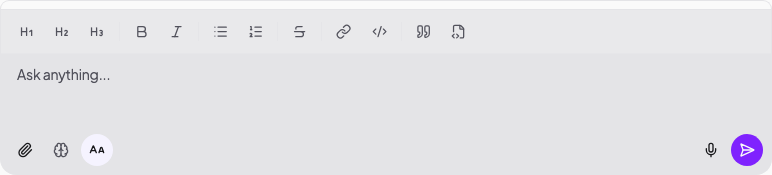
Select Aa below the desktop message box to open the formatting toolbar. Select it again to hide the toolbar.
Mobile has no Aa button or formatting toolbar. Separate paragraphs with blank lines. Start a list with a hyphen and a space.
See Message formatting for the full toolbar guide.
Other message controls
| Control | Use it to |
|---|---|
| Paperclip | Attach a document, image or recording |
| Brain | Turn Deep Thinking on or off |
| Microphone | Record a voice note or meeting |
| Send | Send your message to Kaiya |
On desktop, press Enter to send after Kaiya finishes. Press Shift + Enter for a new line.
On mobile, tap Send. Enter adds a new line. Use blank lines and hyphens to format your message.
Read more about Deep Thinking and recordings.
Keyboard shortcuts
Use these shortcuts inside Kaiya on desktop.
| Action | Mac | Windows |
|---|---|---|
| Start a conversation | Control + K | Control + K |
| Expand or collapse the conversation sidebar | Esc | Esc |
| Send a message after Kaiya finishes | Enter | Enter |
| Add a line in the message box | Shift + Enter | Shift + Enter |
| Make selected text bold | Command + B | Control + B |
| Make selected text italic | Command + I | Control + I |
On Mac, use Control, not Command, for the new-conversation shortcut.
While Kaiya works, you can draft your next message. Enter adds a line during this time. Wait for Kaiya to finish before sending.
If Teams handles a shortcut instead, select inside Kaiya and try again. You can also use the matching button.
Progress and sources
Follow Kaiya's work in the progress summary. Select the summary to see actions and source links.
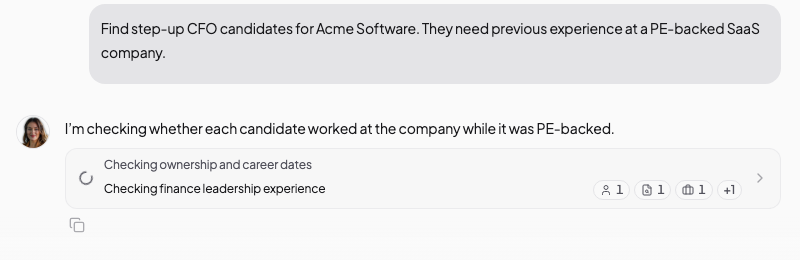
Use the details to check which sources Kaiya has read and which actions have finished. Review the answer before you use it.
Open your results
Kaiya shows a preview in the conversation. Open Results from Kaiya's navigation to use the full results page.
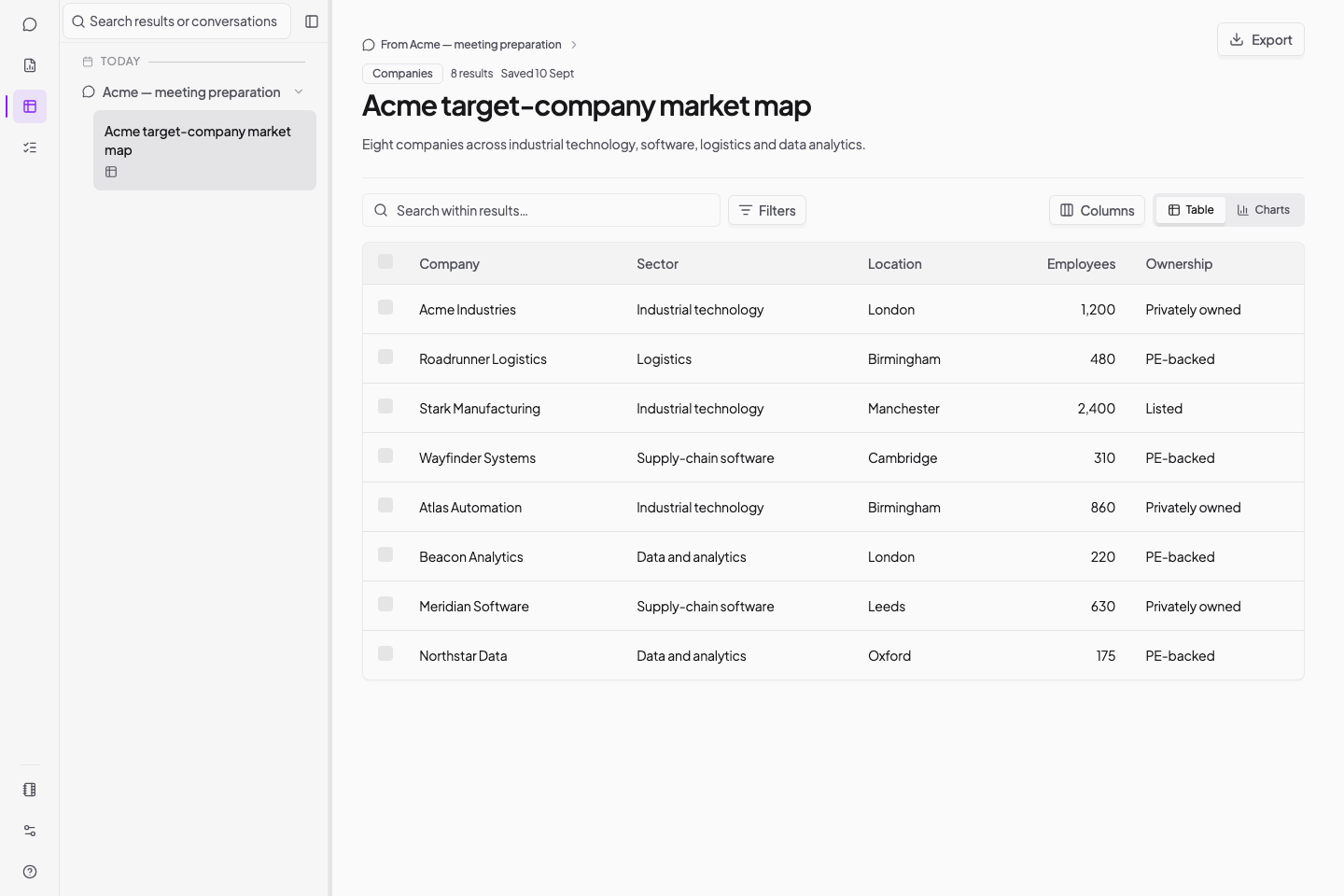
On mobile, Open results in chat opens a preview. Choose Results from the app menu for the full controls.
Results can include tables, charts and person profiles. Ask Kaiya in the conversation for the view or information you need.
See Search, filter, customise and export results.
Find reports and Invenias updates
Open Reports to create an assignment report or download one you made earlier. You can change, save and share report setups.
See Create an assignment report.
Open CRM updates to find plans that need your review and check previous changes. Kaiya shows each plan before you approve it.
See Update Invenias.
Personalise Kaiya
Tell Kaiya what to remember in any conversation. Ask Kaiya to save an Instruction for lasting directions, such as your preferred candidate-report structure.
You can ask Kaiya to list, save, change or delete Instructions and Memories on desktop or mobile.
On desktop, you can also open Personalisation from the notebook icon near the bottom left.
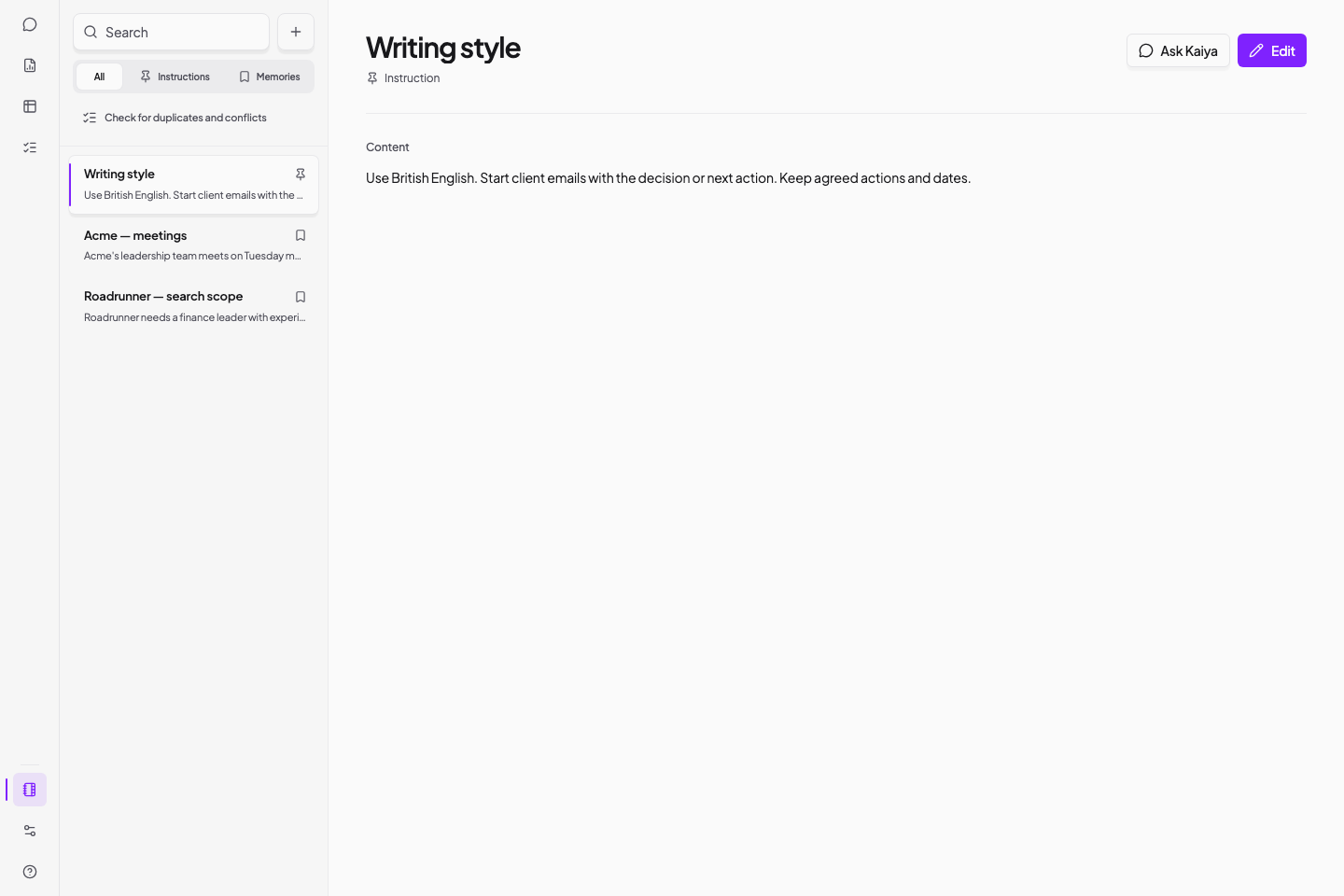
Instructions apply to each conversation. Kaiya recalls saved Memories when relevant to your request.
See Personalise Kaiya.
Account and usage
The sliders icon near the bottom left opens Manage. Select My usage to review your usage.
If your account has company access, My Company opens your firm's usage page. Contact hello@kaiya.ai if you need access.
Use desktop for these account controls. The mobile menu does not include Manage.
Get help
Select the question-mark icon on desktop to open Get help:
- Get help from Kaiya starts a help conversation.
- Open help.kaiya.ai opens this website.
- What's new replays the product tour.
On mobile, open the menu and tap Get help at the bottom to start a help conversation.
You can also email hello@kaiya.ai.
Kaiya's tools
Kaiya can research the web, read online sources and search leading professional networking sites or Invenias. Ask for documents, reports, spreadsheets and images based on the research, your files and the conversation.
Ask for the work you need. Kaiya chooses the tools. Use Reports to create an assignment report from one of your firm's templates.
See Kaiya's tools for what each tool does and links to its guide.